Switch your audio device without opening Windows Settings.
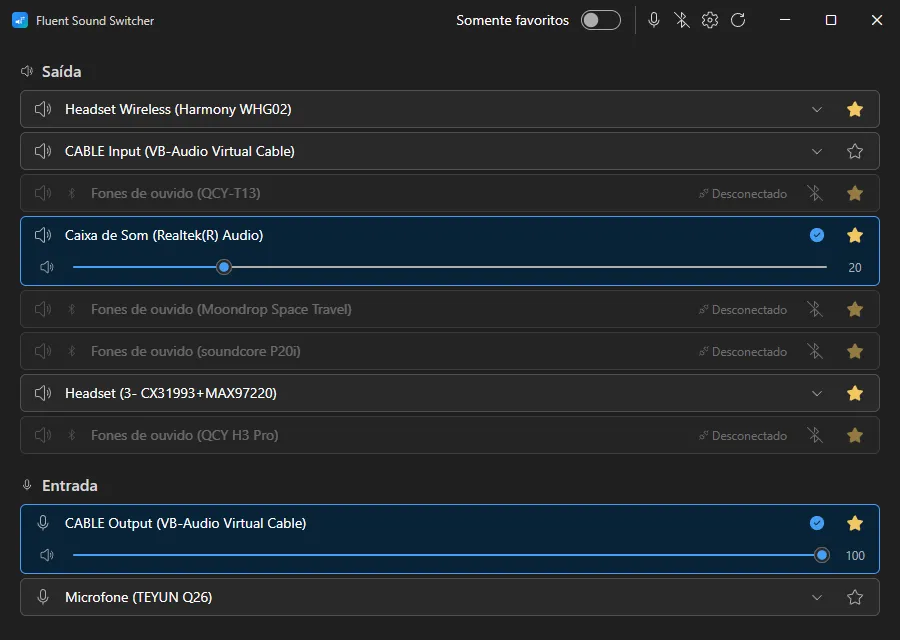
A global hotkey, a tray flyout, and a favourites list with per-device volume. What lands on screen is drawn in Fluent 2 and renders over fullscreen games — the microphone indicator and the volume OSD included.
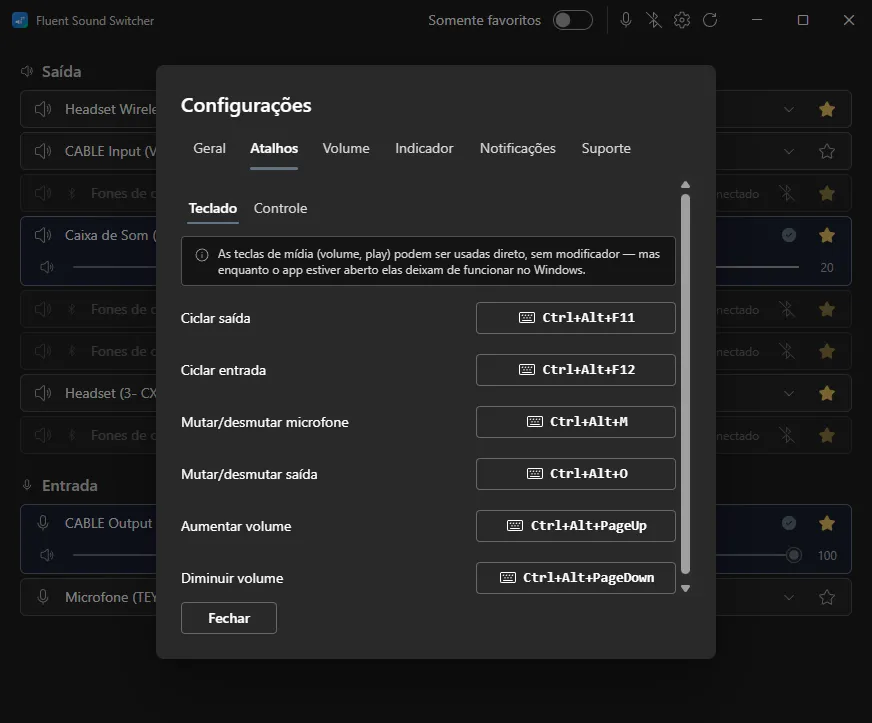
Cycle output, cycle input, mute the mic, mute the output, and turn the volume up or down — all rebindable, media keys included. Cycling walks your favourites, in the order you left them. If Windows refuses a shortcut because another app owns it, the screen tells you which one did not take, instead of showing a dead binding that will never fire.
02
On the controller, mid-game
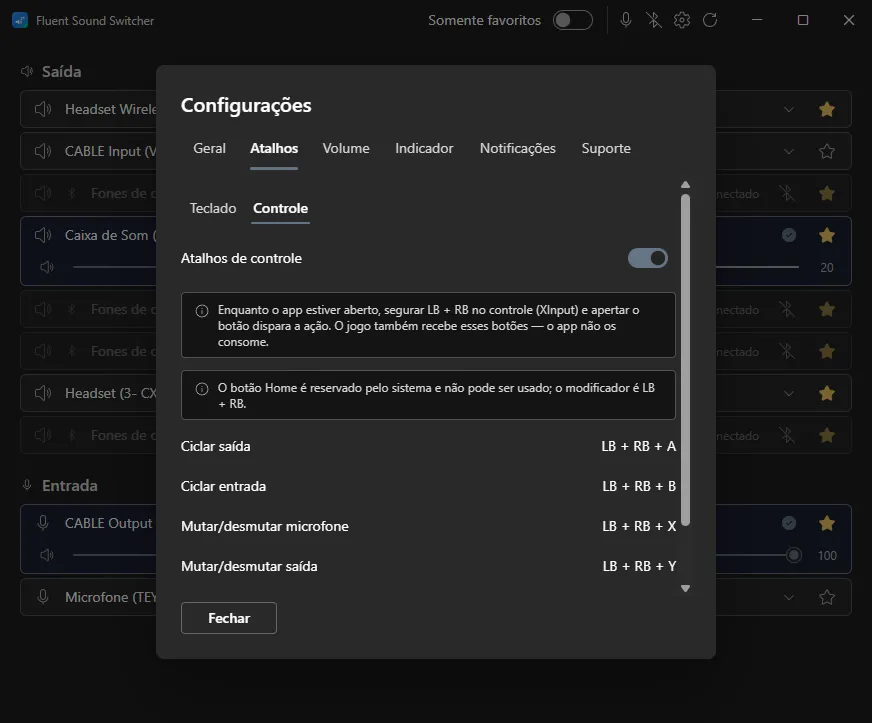
Hold LB + RB on an XInput controller and press A, B, X, Y or the D-pad for the same actions. The Home button is reserved by the system, so the chord is LB + RB. Reading the controller is a plain poll of an official API — no hooks, nothing for anti-cheat to frown at; the game also receives the chord buttons, and one toggle switches it all off. Off by default.
03
One click in the tray and you are done
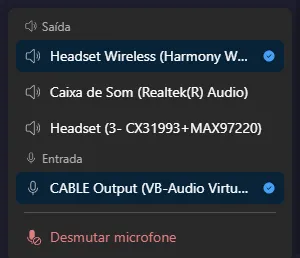
Left-click opens a flyout with your output and input favourites and the mic mute button; right-click opens the menu with Settings, playback devices and quit. The flyout is topmost: it shows over fullscreen games, where the Windows menu disappears behind the taskbar.
04
It wears your Windows colour and theme
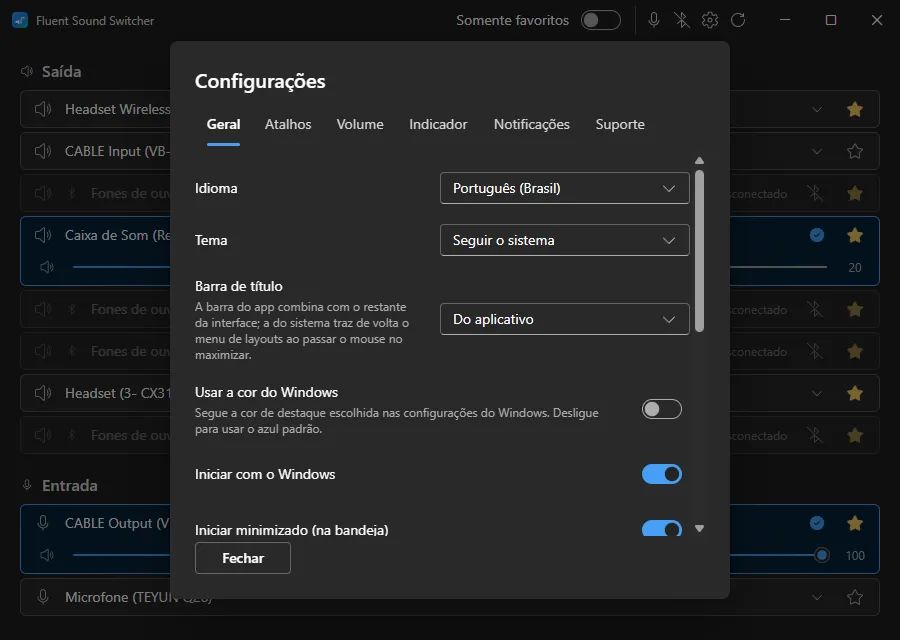
The palette is built from the Windows accent colour and the six shades the system derives around it — and it follows along, live, when you change the colour. Light theme, dark, or following the system. The title bar can be the app’s own, matching the rest of the interface, or the system one, with the snap layouts menu. All applied on the spot, no restart.
And more
Over the game
The mic indicator, volume OSD, switch banner and flyout are topmost and click-through, on the monitor you are looking at.
Per-device volume
A slider on the device you are using, and on any other at a click. Muting covers the output, not just the microphone.
Microphone mute
A configurable on-screen indicator — always, only muted, only live, or never — and a tray icon that reflects the state.
A sleeping favourite stays put
A wireless headset that dozes off keeps its row, dimmed and marked Disconnected, with its star and its place in the cycle.
A CLI in the same binary
The same actions as the UI: list, switch, cycle and mute. It runs and exits, with no window.
Signed updates
It checks for a new release and tells you; downloading and installing is always your call. Artifacts are signed and published with checksums.
Portuguese and English
Interface, tray menu and notifications. The language switches on the spot, no restart.
Light and out of the way
A ~2 MB installer, with no runtime to install. It can start with Windows already minimised to the tray.
FAQ
Which Windows does it run on?
Windows 10 and 11, 64-bit. Switching devices goes through the same COM interface the Windows sound panel uses, so it works with any card or headset the system already sees.
Why does Windows warn me when I install it?
Because the binaries are not Authenticode-signed yet — that is a paid certificate, and it is on the roadmap. Without it, SmartScreen shows a generic warning on first run: click More info → Run anyway. Every release publishes a SHA256SUMS.txt, if you want to verify what you downloaded before running it.
How is it different from SoundSwitch?
Same idea, and SoundSwitch is a fine app. The differences are the interface, drawn in Fluent 2 and aligned with the Windows 11 look, and the popup: on SoundSwitch it sits behind the taskbar in fullscreen apps such as Steam Big Picture. Here every floating window renders on top, every time.
Is it ready to use?
It is on the 0.5.x series, in daily use, working toward 1.0 in phased iterations. What is published works and updates itself; the number below 1.0 is honesty about the rate of change, not about stability.
Does it send my data anywhere?
No. There is no account, no telemetry and no server of ours. The only network call is the update check on GitHub, which carries the same as any download.
I found a bug. Where do I report it?
In the repository issues. Settings → General → Open log folder gets you the log file to attach. It is an independent project maintained in spare time, but I read everything.
It collects nothing
No account, no telemetry, no server. Preferences live in a file under %APPDATA%, and the only network call is the update check on GitHub — which you can decline and keep using the app.